Player guides
Staff
Learn how to manage Staff in Planet Zoo 2.
Your Staff are essential to the ins and outs of zoo operation, so it's important that you know who they are, what they do and how to get the best out of them.
Let's meet the team!
Staff help your zoos run smoothly and undertake tasks such as cleaning, Research, repairing Facilities, and feeding your animals. In short, your Staff keep the gears turning, your animals well cared for and your zoo ready to welcome Guests!
Staff have two needs that must be satisfied to keep them in the best working condition, Staff Energy and Staff Happiness.
Staff Energy is their capacity to complete tasks around your zoo. This declines over time and will drop faster if the Staff member has a heavy workload. This energy replenishes when resting at a Staff Room. If your Staff don't have enough energy, they simply won't be able to complete jobs around your zoo.
Staff Happiness is their satisfaction with their job. This can be maintained by paying the Staff member well and surrounding their working environment with attractive Scenery. Unhappy Staff are likely to quit, so make sure your team are happy with their pay and surroundings!
How To Increase Staff Happiness
Unhappy Staff are likely to quit their jobs, so it's important to keep their work life happy.
- Pay your Staff an appropriate salary for their training level. You can do this through the Staff screen of the Management tab or by selecting a Staff member and viewing the Employment screen in their Info Panel. This will include a handy gauge to show what salary will make the Staff member happy or unhappy.
- Work surroundings matter! Make sure your Staff Facilities and zoo are well decorated with Scenery to keep Staff happy.
Keepers
Keepers are experts in the requirements of animals and are responsible for animal Habitats and their proper upkeep.
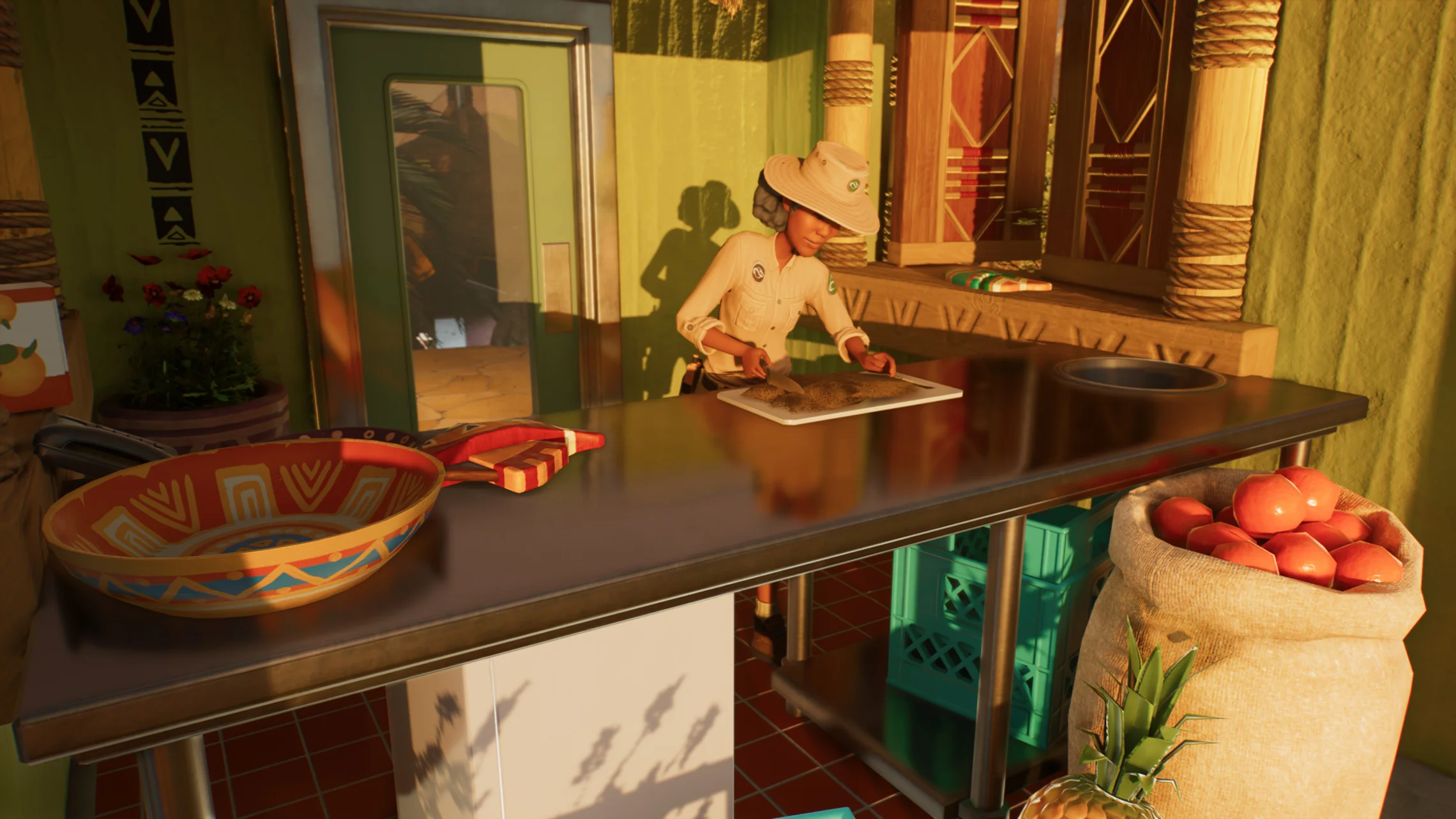
They are responsible for cleaning Habitats, Aquariums and Exhibits, and refilling animal food and enrichments.
Keepers need a Keeper Hut Facility located near a Habitat or Aquarium to prepare food for the animals.
Mechanics
Mechanics look after the physical infrastructure of the zoo. They are responsible for maintaining and repairing Habitat Barriers, Aquarium Barriers, power Facilities, water filters and vending machines.

Unmaintained Barriers degrade and are at risk of collapsing, putting your animals and Guests at risk!
Ensure you have enough Mechanics to maintain all the Facilities in your zoo, with enough time spare for a break at a Staff Room.
Caretakers
Caretakers keep the zoo clean and tidy for Guests. They are also in charge of transporting animals to and from Habitats, Aquariums and Facilities.
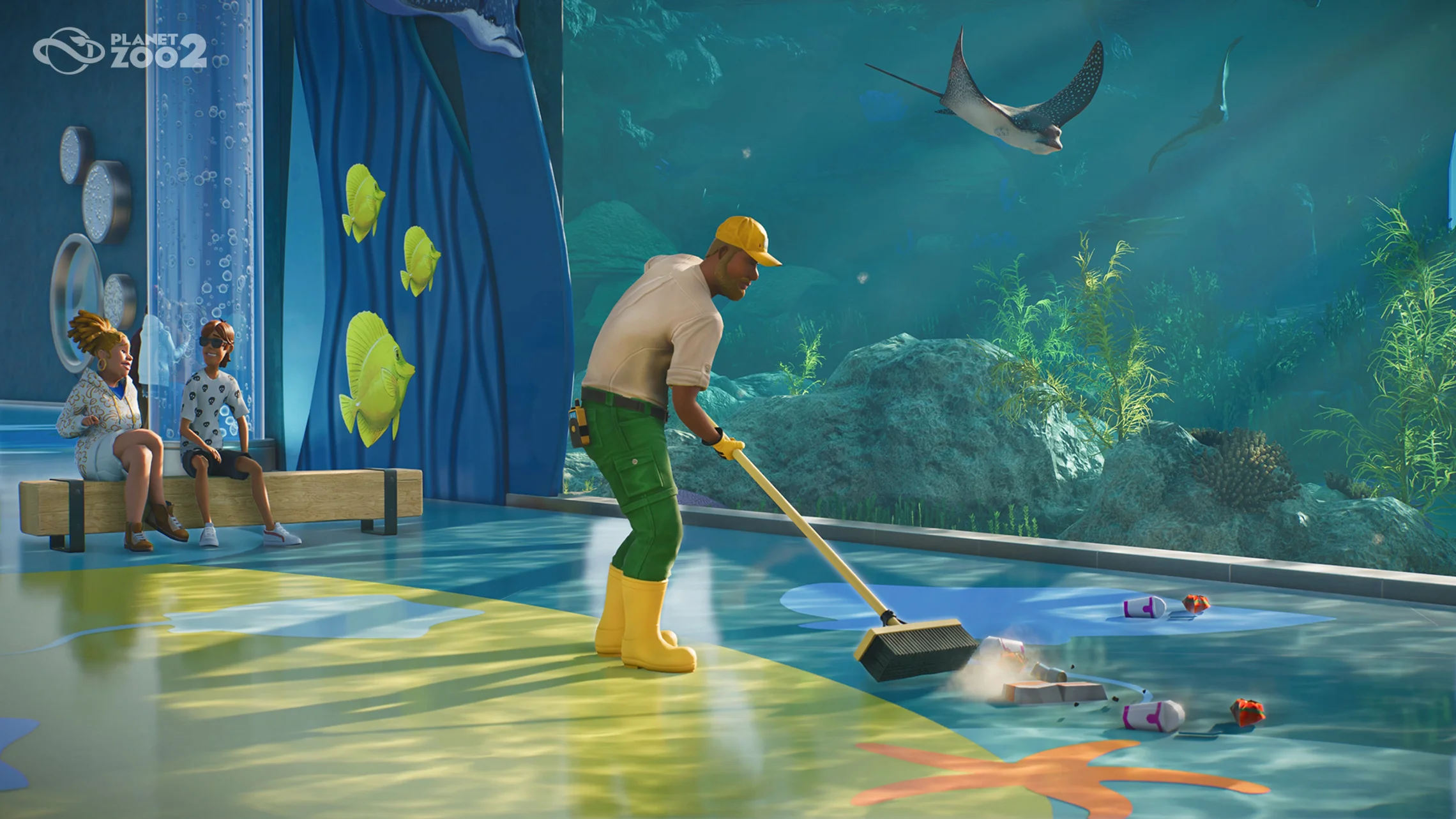
Guests generate litter whenever they are finished with their food or drink. If they can't find a nearby bin or recycling bin, they will discard it on the path. Litter on paths is unappealing to other Guests and will lower their happiness.
Caretakers roam around the zoo, cleaning up any litter on the paths as well as emptying any bins. They will also clean any dirty toilets.
Educators
Educators are Staff members that primarily focus on improving your Guests' education via Animal Talks. Each talk will have one education topic and any Guests attending the talk will learn that topic.
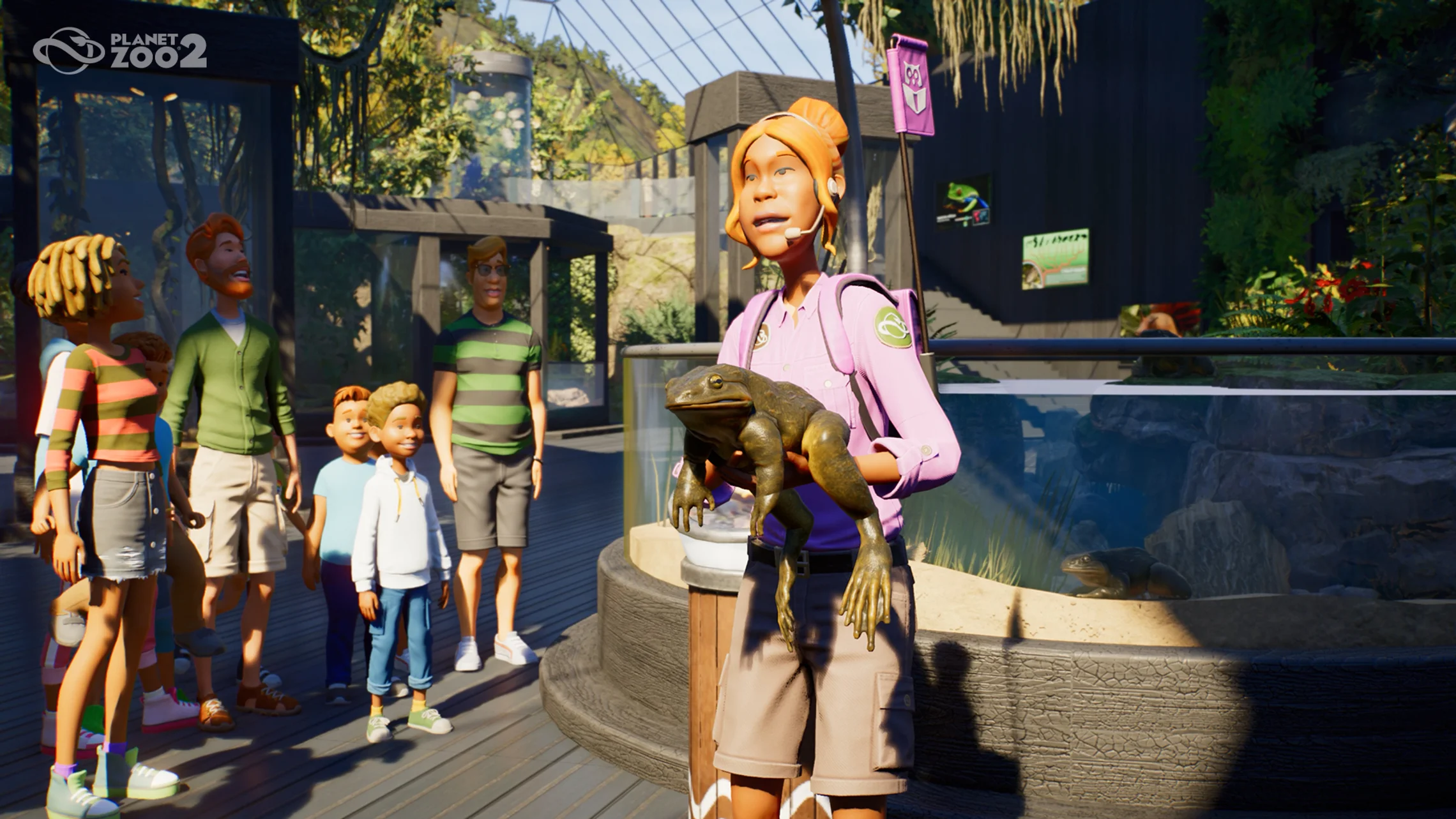
Educators will attempt to reach their assigned Animal Talk in advance, waiting at the Talk Point until it is scheduled to begin. If an Educator misses their talk, it will be cancelled, and the Guests will be unhappy.
Educators can also present roaming talks if they currently are not busy with a scheduled Animal Talk. Roaming Educators will walk around the zoo and hold shorter talks about nearby species, covering topics that are already set up for them.
Vendors
Vendors offer a friendly face for your Guests as they work in the shops and restaurants across your zoo.
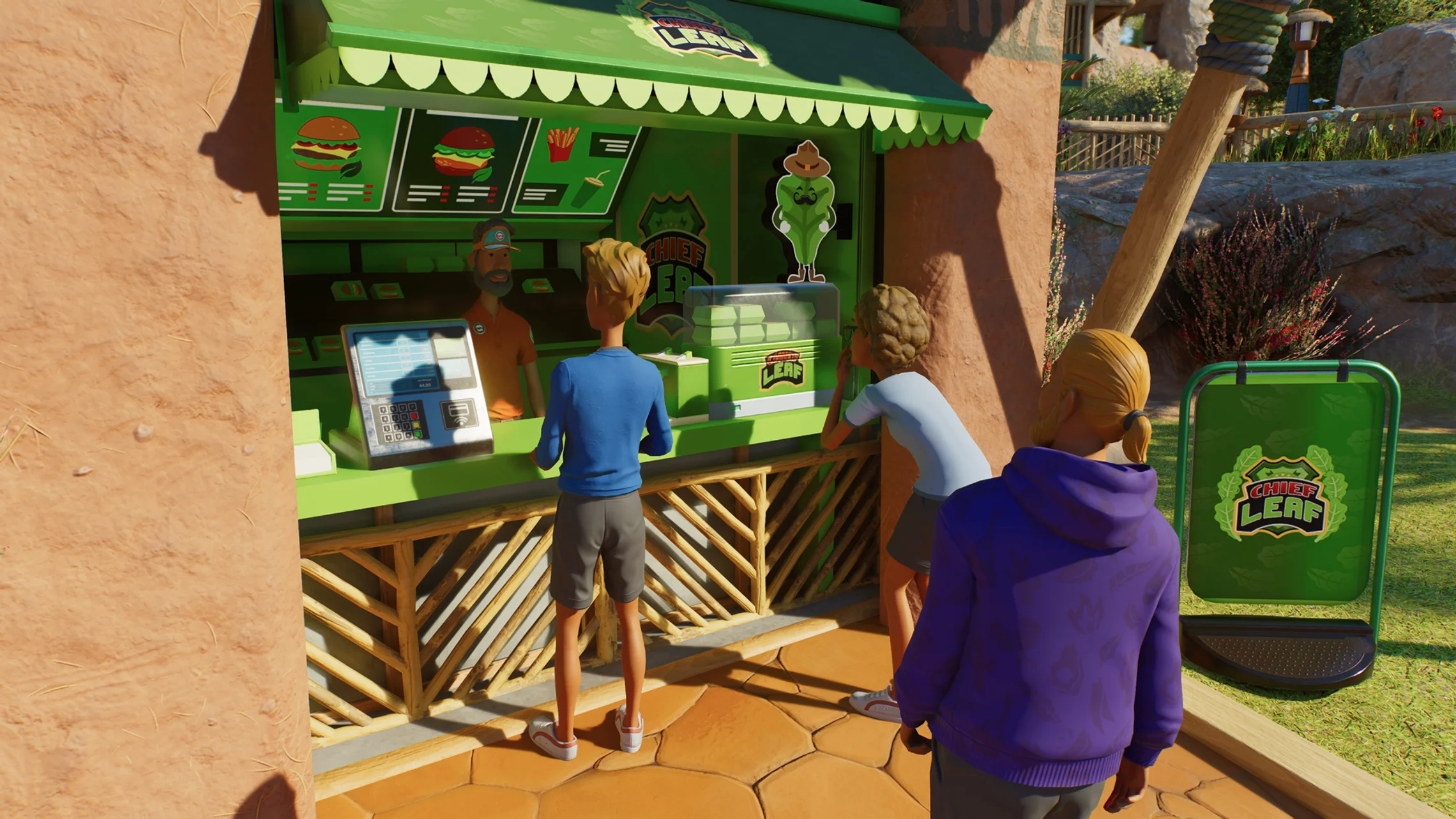
Vendors are assigned to specific shops and will serve Guests as they visit. If a shop does not have a Vendor then customers cannot be served. When a shop is placed, a Vendor will automatically be hired if it is connected to a path.
When a Vendor is tired and visits the Staff Room they will leave their shop unattended. If another Vendor is free, they will automatically take over the shop's duties.
Vets
Vets are the resident experts on animal health. They can treat both animal injuries and diseases if there is an available Vet Surgery to take them to.
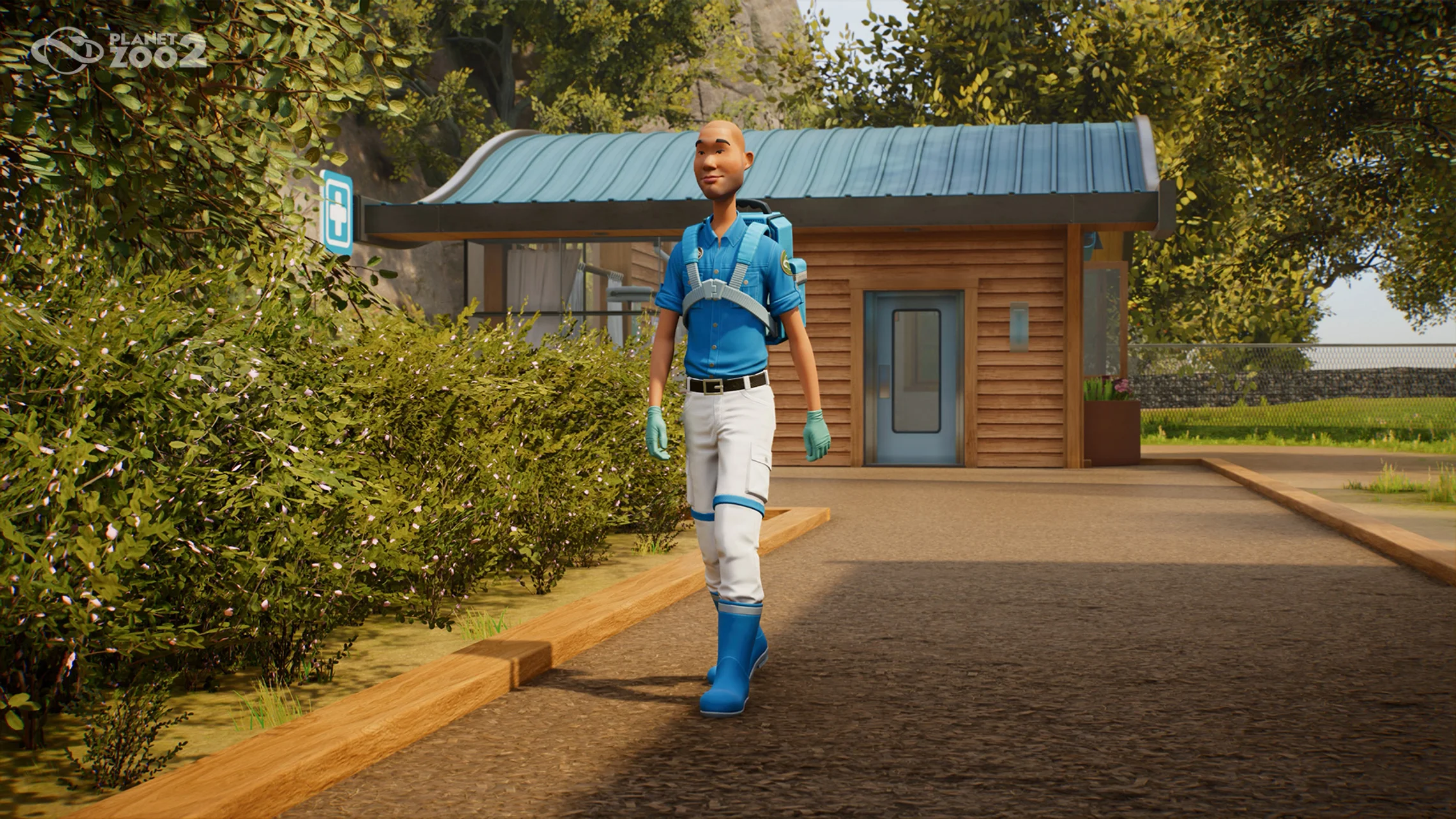
Vets do periodic Habitat inspections to look for animal ailments and are in charge of capturing any escaped animals and returning them to their correct Habitats. As part of this, they are able to transport animals if other Staff are not available. They will also dispose of any animal corpses.
When not doing other jobs, Vets can be assigned to do Research. They will need an available Research Centre, where they will alternate between time inside and looking at Habitat animals to complete the requested Research topic.
Learn more about Research in the Zoo Management guide.
Staff Facilities are buildings that Staff use to perform their duties, including:
- Keeper Huts
- Quarantines
- Research Centres
- Trade Centres
- Staff Rooms
- Vet Surgeries
All Staff Facilities must be powered and accessible by path to function.
Staff Facilities that have Scenery placed around or within them will improve the happiness of your Staff.
Learn more about Staff Facilities and their function in our Building Your Zoo guide.
Be careful, Staff can be hired even if the zoo has negative funds. This can get you out of a tight spot, but your Staff won't be happy working for free for long!
Vendors are automatically hired when a shop is opened, but extra Vendors can be hired to support shops when Staff are taking breaks.
Hiring Staff
You'll need to hire Staff to keep things running as you build and grow your zoo.
Bring in new Staff via the Hire Staff tab on the Browser. Select a Staff type and then place them on a path so they can start working.
How To Hire Staff
Hiring new Staff will be essential to keeping the wheels turning in your zoo.
- Open the Hire Staff tab in the Browser.
- Choose and select the type of Staff member you'd like to hire.
- Place the Staff member within your zoo and they'll get right to work!
How To Fire Staff
Sometimes you might need to part ways with your Staff if your Cash is running low or if you've over hired.
- Open the Management tab in the Browser and navigate to Staff. From here you can see all your Staff. Select the Fire Staff option beside the relevant Staff member to fire them.
- Alternatively, directly select your staff member in the zoo and open their Info Panel. Select the Fire Staff option at the bottom of the relevant Staff member to fire them.
- Staff will be fired immediately upon selecting Fire Staff and will make their way to the exit. Staff can briefly be rehired for a fee before they leave the zoo.
Staff Training
Training Staff is a great way to improve their happiness, resilience and efficiency.
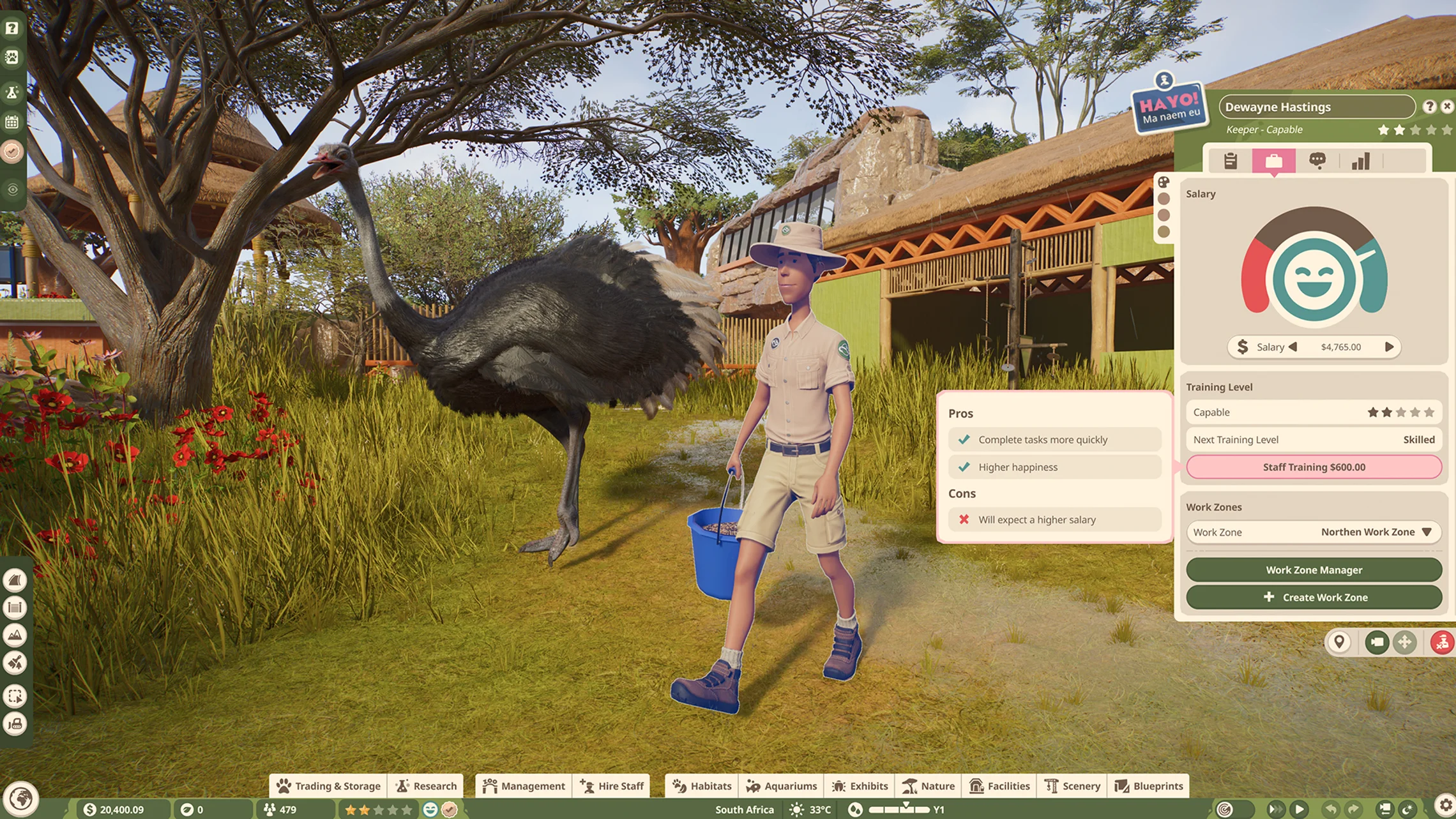
All Staff enter the zoo with a one star rating, and can be trained up to five stars. You can arrange training in the Training tab of the Staff member's Info Panel or on the Staff Page of the Zoo Management screen.
Arranging training incurs a non-refundable cost, and Staff members will receive their training the next time they visit a Staff Room to rest. Staff will expect an improved salary after each training level, so try to keep their pay at pace with their experience.
How To Manage Staff
Effectively managing your Staff can be key to running an efficient zoo.
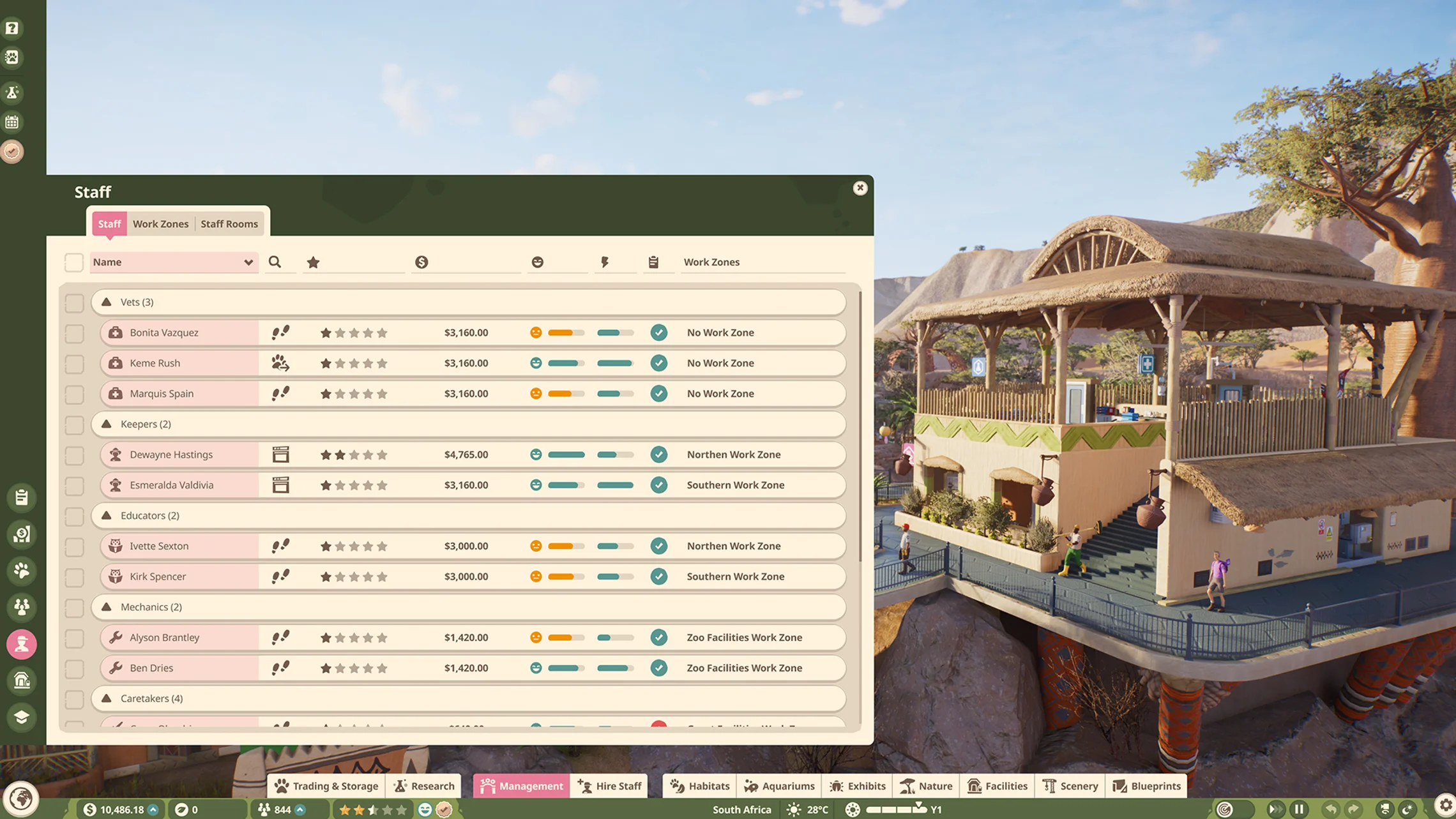
- Open the Management tab in the Browser and navigate to Staff. From here you can see all your Staff, what they're doing, their pay level, happiness, energy and workload. Selecting a Staff member here will open their Info Panel. Alternatively, directly select your Staff member in the zoo and open their Info Panel.
- Through the Info Panel you can edit their tasks, salary, work zone and arrange training. You can also see some stats on their workload including time spent travelling, on duty, resting or idling.
- To get the best out of your Staff, try to keep them happy, with a good workload and minimal time spent travelling or idling.
Staff Uniforms
Staff Uniforms can be recoloured for an individual Staff member, or in bulk for all members of a specific Staff Type. Each Staff Type has multiple different parts of their uniform that can be set to any colour.
Select the palette on the left side of a Staff member’s Info Panel, to open the colour editor.
Each colour channel can be selected at the top of the colour editor, then changed through the colour palette.
Work Zones
A Work Zone is a collection of Facilities that you can assign to Staff members to limit where they will work, improving their efficiency and keeping their workload under control.
You can create a Work Zone from Management > Staff > Work Zones.
Once created, you can assign Staff in the same panel, or from the Employment tab in a Staff member's Info Panel.
How To Create a Staff Work Zone
Staff Work Zones are a great way to split up your park into easily managed sections.
- Open the Management tab in the Browser and navigate to Staff > Work Zones.
- Choose either New Work Zone or select some Staff members and choose Create new and assign.
- Highlight Habitats, Aquariums, Exhibits, Facilities and ride stations to add them to the work zone. Once you have completed your selection close the menu.
- You now have a new Staff Work Zone! This can be further edited through Management > Staff > Work Zones.
How To Assign Staff
Staff will automatically complete jobs around your zoo, but you can control their workload more carefully by assigning them to a Staff Work Zone in two ways:
- From the Browser navigate to Management > Staff > Work Zones then simply select the Staff member and choose the Staff Work Zone to assign them to.
- Open the Staff Member's Info Panel and navigate to the Employment screen. Under Work Zones, choose the Work Zone you want to assign the Staff member to.
Facilities in a Work Zone can include:
- Habitats
- Aquariums
- Exhibits
- Shops (including custom Souvenir Shops and Restaurants)
- Staff Facilities
- Transport Rides - per Station
- Power Systems
- Water Treatment
- ATMs
- Toilets
Staff members will use relevant Facilities in their assigned Work Zone if they are present.
If a Staff member needs access to a Facility that is not present in their Work Zone, they will find one outside the Work Zone.
Work Zones View
To get an overview of your work zone setup you can use the Work Zones View.
Items that can be added to a work zone are coloured in the analysis view:
- Green indicates that a Facility is assigned to the currently selected Work Zone.
- Orange indicates that a Facility is in another Work Zone than the currently selected one.
- Blue indicates that a Facility is part of the selected Work Zone and another. This isn't an issue, but may indicate that the zones could be set up more efficiently.
- Red indicates that a Facility is not assigned to any Work Zone. This may be an issue if all Staff are assigned to Work Zones as there will be nobody looking after this zone.